Monday, 15 April 2013

Adding And Removing Dynamic Rows in ASP.Net GridView Control

Here I am going to explain you how to add dynamic rows in a gridview control by click on Add button and simultaneously Remove dynamic rows from gridview Control by click on Remove button. I have used here one aspx page with a gridview control.Also I have used two images as Add.jpg and Remove.jpg in my images folder as shown Below:-

My GridView View As:-


My Database  Design is like Below:-
Now Here is my Table Defination:-
Reference_ID int        Unchecked
Title    varchar(10)    Checked
First_Name    varchar(15)    Checked
Middle_Name            varchar(15)    Checked
Last_Name     varchar(15)    Checked
Reference_Type        varchar(15)    Checked
Emp_Member_ID      int        Checked
Emp_Member_Type varchar(15)    Checked
Created_On   datetime         Checked
Created_By    int        Checked
Modified_On  datetime         Checked
Modified_By  int        Checked
Is_Active        bit        Checked
Is_Deleted      bit        Checked
My Table Defination Looks Like :-


Now  We have to provide connectionstrigs in web.config.
Here I am providing My connection strings :-
<?xml version="1.0"?>
<configuration>
  <connectionStrings>
    <add name="ShibashishConnectionString" connectionString="Data Source=.\SQLEXPRESS;AttachDbFilename=|DataDirectory|\ShibashishAddRemoveRowFromGrid.mdf;Integrated Security=True;User Instance=True"
      providerName="System.Data.SqlClient" />
  </connectionStrings>
  <system.web>
    <compilation debug="true" targetFramework="4.0"/>
  </system.web>
</configuration>

Now come to the Design Part. where you have to take one Gridview From Your ToolBox and and use your required controls inside that gridview.Here I am using Two DropDownList and Three TextBox Controls and Two Image Button controls as Add and Remove .
It Looks Like:-
My Source Code:-
<%@ Page Language="C#" AutoEventWireup="true" CodeFile="ShibashishAddRemoveRowFromGridView.aspx.cs"
    Inherits="ShibashishAddRemoveRowFromGridView" %>
<!DOCTYPE html PUBLIC "-//W3C//DTD XHTML 1.0 Transitional//EN" "http://www.w3.org/TR/xhtml1/DTD/xhtml1-transitional.dtd">
<html xmlns="http://www.w3.org/1999/xhtml">
<head runat="server">
    <title>Shibashish Mohanty</title>
</head>
<body>
    <h1>
        Om Namah Shivaya</h1>
    <form id="form1" runat="server">
    <div>
        <asp:GridView ID="GridGuardians" runat="server" AutoGenerateColumns="False" BorderColor="#507CD1"
            BorderStyle="Solid" BorderWidth="1" CellPadding="4" Font-Names="Verdana" Font-Size="9pt"
            ForeColor="#333333" GridLines="None" OnRowCommand="GridGuardians_RowCommand"
            ShowHeader="false">
            <Columns>
                <asp:TemplateField>
                    <ItemTemplate>
                        <table cellpadding="-1" cellspacing="-1" style="border: none;">
                            <tr>
                                <td>
                                    <asp:ImageButton ID="imgBtnAdd" runat="server" CausesValidation="false" CommandName="Add"
                                        Height="8" ImageUrl="~/images/Add.jpg" ToolTip="Add New Row" Visible='<%# Eval("ShowAddButton") %>'
                                        Width="8" />
                                </td>
                            </tr>
                            <tr>
                                <td>
                                    <asp:ImageButton ID="imgBtnRemove" runat="server" CausesValidation="false" CommandName="Remove"
                                        Height="8" ImageUrl="~/images/Remove.jpg" ToolTip="Delete Row" Visible='<%# Eval("ShowRemoveButton") %>'
                                        Width="8" />
                                </td>
                            </tr>
                        </table>
                    </ItemTemplate>
                </asp:TemplateField>
                <asp:TemplateField>
                    <ItemTemplate>
                        <asp:DropDownList ID="ddlSelectType" runat="server" Text='<%#Eval("Reference_Type") %>'>
                            <asp:ListItem>Select</asp:ListItem>
                            <asp:ListItem>Father</asp:ListItem>
                            <asp:ListItem>Son</asp:ListItem>
                            <asp:ListItem>Brother</asp:ListItem>
                            <asp:ListItem>Spouse</asp:ListItem>
                        </asp:DropDownList>
                    </ItemTemplate>
                </asp:TemplateField>
                <asp:TemplateField>
                    <ItemTemplate>
                        <asp:DropDownList ID="DdlGridTitle" runat="server" Text='<%#Eval("Title") %>'>
                            <asp:ListItem>Select</asp:ListItem>
                            <asp:ListItem>Mr</asp:ListItem>
                            <asp:ListItem>Mrs</asp:ListItem>
                            <asp:ListItem>Shree</asp:ListItem>
                            <asp:ListItem>Miss</asp:ListItem>
                        </asp:DropDownList>
                    </ItemTemplate>
                </asp:TemplateField>
                <asp:TemplateField>
                    <ItemTemplate>
                        <asp:TextBox ID="TxtGuardFirstName" runat="server" Text='<%#Eval("First_Name") %>'
                            Width="120"></asp:TextBox>
                    </ItemTemplate>
                </asp:TemplateField>
                <asp:TemplateField>
                    <ItemTemplate>
                        <asp:TextBox ID="TxtGuardMiddleName" runat="server" Text='<%#Eval("Middle_Name") %>'
                            Width="120"></asp:TextBox>
                    </ItemTemplate>
                </asp:TemplateField>
                <asp:TemplateField>
                    <ItemTemplate>
                        <asp:TextBox ID="TxtGuardLastName" runat="server" Text='<%#Eval("Last_Name") %>'
                            Width="120"></asp:TextBox>
                    </ItemTemplate>
                </asp:TemplateField>
            </Columns>
        </asp:GridView>
    </div>
    </form>
</body>
</html>
Here is my Code Behind:-
using System;
using System.Collections.Generic;
using System.Linq;
using System.Web;
using System.Web.UI;
using System.Web.UI.WebControls;
using System.Configuration;
using System.Data;
using System.Data.SqlClient;
public partial class ShibashishAddRemoveRowFromGridView : System.Web.UI.Page
{
    protected void Page_Load(object sender, EventArgs e)
    {
        if (!IsPostBack)
        {
            this.BindData();
            if (GridGuardians.Rows.Count == 0)
            {
                SetDefaultRow();
            }
        }
    }
//GridView RowCommand Event For Adding and Removing Rows From Gridview
    protected void GridGuardians_RowCommand(object sender, GridViewCommandEventArgs e)
    {
        if (e.CommandName == "Add")
        {
            GridViewRow gridRow = (GridViewRow)(((ImageButton)e.CommandSource).NamingContainer);
            int RowIndex = gridRow.RowIndex;
            DataTable dt = new DataTable();
            DataColumn ShowButton = new DataColumn("ShowAddButton", typeof(bool));
            DataColumn ShowRemoveButton = new DataColumn("ShowRemoveButton", typeof(bool));
            DataColumn dcSelectTypeID = new DataColumn("Reference_Type", typeof(string));
            DataColumn dcSelectTitle = new DataColumn("Title", typeof(string));
            DataColumn dcFirstname = new DataColumn("First_Name", typeof(string));
            DataColumn dcMiddlename = new DataColumn("Middle_Name", typeof(string));
            DataColumn dcLastname = new DataColumn("Last_Name", typeof(string));
            dt.Columns.Add(dcSelectTypeID);
            dt.Columns.Add(dcFirstname);
            dt.Columns.Add(dcMiddlename);
            dt.Columns.Add(dcLastname);
            dt.Columns.Add(ShowRemoveButton);
            dt.Columns.Add(ShowButton);
            dt.Columns.Add(dcSelectTitle);
            foreach (GridViewRow dr in GridGuardians.Rows)
            {
                DataRow dtrow = dt.NewRow();
                DropDownList ddlSelectType = (DropDownList)dr.FindControl("ddlSelectType");
                dtrow["Reference_Type"] = ddlSelectType.SelectedItem.Text;
                DropDownList ddlSelectTitle = (DropDownList)dr.FindControl("DdlGridTitle");
                dtrow["Title"] = ddlSelectTitle.SelectedItem.Text;
                TextBox txtFirstname = (TextBox)dr.FindControl("TxtGuardFirstName");
                dtrow["First_Name"] = txtFirstname.Text;
                TextBox txtMiddleName = (TextBox)dr.FindControl("TxtGuardMiddleName");
                dtrow["Middle_Name"] = txtMiddleName.Text;
                TextBox txtLastname = (TextBox)dr.FindControl("TxtGuardLastName");
                dtrow["Last_Name"] = txtLastname.Text;
                ImageButton showbutton = (ImageButton)dr.FindControl("imgBtnAdd");
                dtrow["ShowAddButton"] = false;
                ImageButton showRemovebutton = (ImageButton)dr.FindControl("imgBtnRemove");
                dtrow["ShowRemoveButton"] = false;
                dt.Rows.Add(dtrow);
            }
            DataRow newRow = dt.NewRow();
            newRow["Reference_Type"] = "Select";
            newRow["Title"] = "Select";
            newRow["First_Name"] = "";
            newRow["Middle_Name"] = "";
            newRow["Last_Name"] = "";
            newRow["ShowAddButton"] = true;
            newRow["ShowRemoveButton"] = true;
            dt.Rows.Add(newRow);
            GridGuardians.DataSource = dt;
            GridGuardians.DataBind();
        }
        else if (e.CommandName == "Remove")
        {
            GridViewRow gridRow = (GridViewRow)(((ImageButton)e.CommandSource).NamingContainer);
            int RowIndex = gridRow.RowIndex;
            DataTable dt1 = new DataTable();
            DataColumn ShowButton = new DataColumn("ShowAddButton", typeof(bool));
            DataColumn ShowRemoveButton = new DataColumn("ShowRemoveButton", typeof(bool));
            DataColumn dcSelectTypeID = new DataColumn("Reference_Type", typeof(string));
            DataColumn dcSelectTitle = new DataColumn("Title", typeof(string));
            DataColumn dcFirstname = new DataColumn("First_Name", typeof(string));
            DataColumn dcMiddlename = new DataColumn("Middle_Name", typeof(string));
            DataColumn dcLastname = new DataColumn("Last_Name", typeof(string));
            dt1.Columns.Add(dcSelectTypeID);
            dt1.Columns.Add(dcFirstname);
            dt1.Columns.Add(dcMiddlename);
            dt1.Columns.Add(dcLastname);
            dt1.Columns.Add(ShowRemoveButton);
            dt1.Columns.Add(ShowButton);
            dt1.Columns.Add(dcSelectTitle);
            foreach (GridViewRow dr in GridGuardians.Rows)
            {
                DataRow dtrow = dt1.NewRow();
                DropDownList ddlSelectType = (DropDownList)dr.FindControl("ddlSelectType");
                dtrow["Reference_Type"] = ddlSelectType.SelectedItem.Text;
                DropDownList ddlSelectTitle = (DropDownList)dr.FindControl("DdlGridTitle");
                dtrow["Title"] = ddlSelectTitle.SelectedItem.Text;
                TextBox txtFirstname = (TextBox)dr.FindControl("TxtGuardFirstName");
                dtrow["First_Name"] = txtFirstname.Text;
                TextBox txtMiddleName = (TextBox)dr.FindControl("TxtGuardMiddleName");
                dtrow["Middle_Name"] = txtMiddleName.Text;
                TextBox txtLastname = (TextBox)dr.FindControl("TxtGuardLastName");
                dtrow["Last_Name"] = txtLastname.Text;
                ImageButton showbutton = (ImageButton)dr.FindControl("imgBtnAdd");
                dtrow["ShowAddButton"] = false;
                ImageButton showRemovebutton = (ImageButton)dr.FindControl("imgBtnRemove");
                dtrow["ShowRemoveButton"] = false;
                dt1.Rows.Add(dtrow);
            }
            dt1.Rows.RemoveAt(RowIndex);
            GridGuardians.DataSource = dt1;
            GridGuardians.DataBind();
            if (GridGuardians.Rows.Count > 0)
            {
                ImageButton imgLast = (ImageButton)GridGuardians.Rows[GridGuardians.Rows.Count - 1].FindControl("imgBtnRemove");
                imgLast.Visible = true;
                ImageButton imgFirst = (ImageButton)GridGuardians.Rows[GridGuardians.Rows.Count - 1].FindControl("imgBtnAdd");
                imgFirst.Visible = true;
            }
        }
    }
//Methods For Binding Data to Gridview
    #region BindGurdians GridView
    private void BindData()
    {
        string strConnString = ConfigurationManager.ConnectionStrings["ShibashishConnectionString"].ConnectionString;
        DataTable dtSelect = new DataTable();
        using (SqlConnection con = new SqlConnection(strConnString))
        {
            string strQuery = "SELECT [Reference_ID], [Title], [First_Name], [Middle_Name], [Last_Name], [Reference_Type], [Emp_Member_Type] FROM [Shibashish'sGuardians]";
            SqlCommand cmd = new SqlCommand(strQuery);
            using (SqlDataAdapter sda = new SqlDataAdapter())
            {
                cmd.Connection = con;
                con.Open();
                sda.SelectCommand = cmd;
                sda.Fill(dtSelect);
                DataTable dt = new DataTable();
                DataColumn ShowButton = new DataColumn("ShowAddButton", typeof(bool));
                DataColumn ShowRemoveButton = new DataColumn("ShowRemoveButton", typeof(bool));
                DataColumn dcSelectTypeID = new DataColumn("Reference_Type", typeof(string));
                DataColumn dcSelectTitle = new DataColumn("Title", typeof(string));
                DataColumn dcFirstname = new DataColumn("First_Name", typeof(string));
                DataColumn dcMiddlename = new DataColumn("Middle_Name", typeof(string));
                DataColumn dcLastname = new DataColumn("Last_Name", typeof(string));
                dt.Columns.Add(dcSelectTypeID);
                dt.Columns.Add(dcFirstname);
                dt.Columns.Add(dcMiddlename);
                dt.Columns.Add(dcLastname);
                dt.Columns.Add(ShowRemoveButton);
                dt.Columns.Add(ShowButton);
                dt.Columns.Add(dcSelectTitle);
                foreach (DataRow dr in dtSelect.Rows)
                {
                    DataRow newRow = dt.NewRow();
                    newRow["Reference_Type"] = dr["Reference_Type"].ToString();
                    newRow["Title"] = dr["Title"].ToString();
                    newRow["First_Name"] = dr["First_Name"].ToString();
                    newRow["Middle_Name"] = dr["Middle_Name"].ToString();
                    newRow["Last_Name"] = dr["Last_Name"].ToString();
                    newRow["ShowAddButton"] = true;
                    newRow["ShowRemoveButton"] = true;
                    dt.Rows.Add(newRow);
                }
                GridGuardians.DataSource = dt;
                GridGuardians.DataBind();
            }
        }
    }
    #endregion
//Show Default Row if there is no data inside the Gridview
    #region Default Row Method
    public void SetDefaultRow()
    {
        DataTable dt = new DataTable();
        DataColumn ShowButton = new DataColumn("ShowAddButton", typeof(bool));
        DataColumn ShowRemoveButton = new DataColumn("ShowRemoveButton", typeof(bool));
        DataColumn dcSelectTypeID = new DataColumn("Reference_Type", typeof(string));
        DataColumn dcSelectTitle = new DataColumn("Title", typeof(string));
        DataColumn dcFirstname = new DataColumn("First_Name", typeof(string));
        DataColumn dcMiddlename = new DataColumn("Middle_Name", typeof(string));
        DataColumn dcLastname = new DataColumn("Last_Name", typeof(string));
        dt.Columns.Add(dcSelectTypeID);
        dt.Columns.Add(dcFirstname);
        dt.Columns.Add(dcMiddlename);
        dt.Columns.Add(dcLastname);
        dt.Columns.Add(ShowRemoveButton);
        dt.Columns.Add(ShowButton);
        dt.Columns.Add(dcSelectTitle);
        DataRow newRow = dt.NewRow();
        newRow["Reference_Type"] = "Select";
        newRow["Title"] = "Select";
        newRow["First_Name"] = "";
        newRow["Middle_Name"] = "";
        newRow["Last_Name"] = "";
        newRow["ShowAddButton"] = true;
        newRow["ShowRemoveButton"] = true;
        dt.Rows.Add(newRow);
        GridGuardians.DataSource = dt;
        GridGuardians.DataBind();
    }
    #endregion
}
Now After running it Will Display As:-

Here I am Clicking Plus Button By which it will add a new Row and it looks like Below Figure:-


Now Again I am Clicking on Plus Button It will add Another Row as Shown Below:-


Now By Click on Remove Button It will Remove One Row As Below:-


Adding Dynamic Rows in ASP.Net GridView Control with TextBoxes

Introduction:

I decided to write this article because this has been asked so many times before at the forums (http://forums.asp.net) . Basically, this example shows on how to generate a Row in GridView with TextBoxes when clicking a Button that is residing inside a GridView Footer.
 
To get started, let’s grab a GridView control from the Visual Studio Toolbox and put it in the Web Form. The mark up would look something like this:
 
<asp:gridview ID="Gridview1" runat="server" ShowFooter="true" AutoGenerateColumns="false">
        <Columns>
        <asp:BoundField DataField="RowNumber" HeaderText="Row Number" />
        <asp:TemplateField HeaderText="Header 1">
            <ItemTemplate>
                <asp:TextBox ID="TextBox1" runat="server"></asp:TextBox>
            </ItemTemplate>
        </asp:TemplateField>
        <asp:TemplateField HeaderText="Header 2">
            <ItemTemplate>
                <asp:TextBox ID="TextBox2" runat="server"></asp:TextBox>
            </ItemTemplate>
        </asp:TemplateField>
        <asp:TemplateField HeaderText="Header 3">
            <ItemTemplate>
                 <asp:TextBox ID="TextBox3" runat="server"></asp:TextBox>
            </ItemTemplate>
            <FooterStyle HorizontalAlign="Right" />
            <FooterTemplate>
             <asp:Button ID="ButtonAdd" runat="server" Text="Add New Row" />
            </FooterTemplate>
        </asp:TemplateField>
        </Columns>
</asp:gridview>
 
Since this demo is intended to generate rows of TextBox in GridView, then we set up some Template Fields columns so that GridView will automatically generates TextBoxes when a new row is being added.
 
As you can see I have set up a BoundField Column for displaying the Row Number and set up three TemplateField Columns in the Grid and added each column a TextBox Control. You would also notice that I have added a Button Control under the FooterTemplate at the last column in the GridView.
 
Note: Since we are added a Control in the GridView footer, then be sure to set ShowFooter to TRUE in the GridView.
 
Now let’s switch to the Code behind part of the web form.
 
As you may know, the GridView control will not show in the page once there is no data associated on it. So the first thing we need here is to set an initial data in the GridView Control. To do this, we can use a DataTable for binding our GridView.
 
Here’s the code block below:

    private void SetInitialRow()
    {
        DataTable dt = new DataTable();
        DataRow dr = null;
        dt.Columns.Add(new DataColumn("RowNumber", typeof(string)));
        dt.Columns.Add(new DataColumn("Column1", typeof(string)));
        dt.Columns.Add(new DataColumn("Column2", typeof(string)));
        dt.Columns.Add(new DataColumn("Column3", typeof(string)));
        dr = dt.NewRow();
        dr["RowNumber"] = 1;
        dr["Column1"] = string.Empty;
        dr["Column2"] = string.Empty;
        dr["Column3"] = string.Empty;
        dt.Rows.Add(dr);
        //dr = dt.NewRow();
 
        //Store the DataTable in ViewState
        ViewState["CurrentTable"] = dt;
 
        Gridview1.DataSource = dt;
        Gridview1.DataBind();
    }
 
As you can see, we define four Columns in the DataTable called RowNumber, Column1, Column2 and Column3. The RowNumber column will serve as the key for generating the rows in the GridView. Noticed that for Columns 1, 2 and 3, I assigned an empty value for those columns since the GridView will be generated for the first time. You also noticed that I store the DataTable in ViewState so that we can reference the current data associated within the DataTable when it postbacks.
 
Now let’s call the method above in Page_Load event:
 
    protected void Page_Load(object sender, EventArgs e)
    {
        if (!Page.IsPostBack)
        {
            SetInitialRow(); 
        }
    }
 
Running the codes above will give us this output below:
 
 
Now let’s create the method for generating the rows when clicking the Button. Here are the code blocks below:


    private void AddNewRowToGrid()
    {
        int rowIndex = 0;
 
        if (ViewState["CurrentTable"] != null)
        {
            DataTable dtCurrentTable = (DataTable)ViewState["CurrentTable"];
            DataRow drCurrentRow = null;
            if (dtCurrentTable.Rows.Count > 0)
            {
                for (int i = 1; i <= dtCurrentTable.Rows.Count; i++)
                {
                    //extract the TextBox values
                    TextBox box1 = (TextBox)Gridview1.Rows[rowIndex].Cells[1].FindControl("TextBox1");
                    TextBox box2 = (TextBox)Gridview1.Rows[rowIndex].Cells[2].FindControl("TextBox2");
                    TextBox box3 = (TextBox)Gridview1.Rows[rowIndex].Cells[3].FindControl("TextBox3");
 
                    drCurrentRow = dtCurrentTable.NewRow();
                    drCurrentRow["RowNumber"] = i + 1;
 
                    dtCurrentTable.Rows[i - 1]["Column1"] = box1.Text;
                    dtCurrentTable.Rows[i - 1]["Column2"] = box2.Text;
                    dtCurrentTable.Rows[i - 1]["Column3"] = box3.Text;
 
                    rowIndex++;
                }
                dtCurrentTable.Rows.Add(drCurrentRow);
                ViewState["CurrentTable"] = dtCurrentTable;
 
                Gridview1.DataSource = dtCurrentTable;
                Gridview1.DataBind();
            }
        }
        else
        {
            Response.Write("ViewState is null");
        }
 
        //Set Previous Data on Postbacks
        SetPreviousData();
    }
 
As a summary, the code above gets the previous data stored from the ViewState and set the data stored from it into a DataTable so that we can add a new row based from the value entered from the TextBox.
 
You will also noticed that we call the method SetPreviousData() at the bottom part of the codes above. Now where is that method?  Below are the code blocks for that method:
 
 
    private void SetPreviousData()
    {
        int rowIndex = 0;
        if (ViewState["CurrentTable"] != null)
        {
            DataTable dt = (DataTable)ViewState["CurrentTable"];
            if (dt.Rows.Count > 0)
            {
                for (int i = 0; i < dt.Rows.Count; i++)
                {
                    TextBox box1 = (TextBox)Gridview1.Rows[rowIndex].Cells[1].FindControl("TextBox1");
                    TextBox box2 = (TextBox)Gridview1.Rows[rowIndex].Cells[2].FindControl("TextBox2");
                    TextBox box3 = (TextBox)Gridview1.Rows[rowIndex].Cells[3].FindControl("TextBox3");
 
                    box1.Text = dt.Rows[i]["Column1"].ToString();
                    box2.Text = dt.Rows[i]["Column2"].ToString();
                    box3.Text = dt.Rows[i]["Column3"].ToString();
 
                    rowIndex++;
                }
            }
        }
    }
 
Now, since the methods are all set then we can call this at Button Click event of the Button.
 
  protected void ButtonAdd_Click(object sender, EventArgs e)
  {
        AddNewRowToGrid();
  }
 
 
As you can see the code above is very straight forward and self explanatory.  Running the code above will give us this output below:
 

ASP.NET , C# Code, Examples, samples and tutorials

Insert record in database using stored procedure in asp.net

In this article am explaining very simpe thing insert record in database using stored procedure,that will very help full for entry level programmer. 

web.config
 <connectionStrings>  
      <add name="conString" connectionString="Data Source=.\SQLEXPRESS; database=Northwind;Integrated Security=true"/>:  
 </connectionStrings>  


Used Stored procedure
CREATE PROCEDURE [dbo].[AddUser]
(
@FName varchar(50),
@LName varchar(50),
@DateOfBirth datetime,
@City varchar(50),
@State varchar(50)
)
AS
BEGIN

SET NOCOUNT ON;
INSERT INTO UserDetails (FName, LName, DateOfBirth, City, State)
VALUES (@FName, @LName, @DateOfBirth, @City, @State)
END


C# code

 String ConnString = ConfigurationManager.ConnectionStrings["conString"].ConnectionString;  
 SqlConnection con = new SqlConnection(ConnString);  
 SqlCommand cmd = new SqlCommand();  
 cmd.CommandType = CommandType.StoredProcedure;  
 cmd.CommandText = "AddUser";  
 cmd.Parameters.Add("@FName",SqlDbType.VarChar).Value = txtFName.Text.Trim();  
 cmd.Parameters.Add("@LName", SqlDbType.VarChar).Value = txtLName.Text.Trim();  
 cmd.Parameters.Add("@DateOfBirth", SqlDbType.DateTime).Value = txtDOB.Text.Trim();  
 cmd.Parameters.Add("@City", SqlDbType.VarChar).Value = txtCity.Text.Trim();  
 cmd.Parameters.Add("@State", SqlDbType.VarChar).Value = txtState.Text.Trim();  
 cmd.Connection = con;  
 try  
 {  
      con.Open();  
      cmd.ExecuteNonQuery();  
      lblMessage.Text = "Record inserted successfully";  
 }  
 catch (Exception ex)  
 {  
      throw ex;  
 }  
 finally  
 {  
      con.Close();  
      con.Dispose();  
 }  

Tuesday, 9 April 2013

Create RESTful WCF Service API: Step By Step Guide

Introduction

Windows Communication Foundation (WCF) is an SDK for developing and deploying services on Windows. WCF provides a runtime environment for your services, enabling you to expose CLR types as services, and to consume other services as CLR types. In this article, I am going to explain how to implement restful service API using WCF 4.0 . The Created API returns XML and JSON data using WCF attributes.

What is REST?

Based on the Roy Fielding theory "Representational State Transfer (REST), attempts to codify the architectural style and design constraints that make the Web what it is. REST emphasizes things like separation of concerns and layers, statelessness, and caching, which are common in many distributed architectures because of the benefits they provide. These benefits include interoperability, independent evolution, interception, improved scalability, efficiency, and overall performance."
Actually only the difference is how clients access our service. Normally, a WCF service will use SOAP, but if you build a REST service, clients will be accessing your service with a different architectural style (calls, serialization like JSON, etc.).
REST uses some common HTTP methods to insert/delete/update/retrieve information which is below:
  1. GET - Requests a specific representation of a resource
  2. PUT - Creates or updates a resource with the supplied representation
  3. DELETE - Deletes the specified resource
  4. POST - Submits data to be processed by the identified resource

Why and Where to Use REST?

Few days back, I was writing a service which was supposed to be accessed by heterogeneous language/platform/system. It can be used by iPhone, Android, Windows Mobile, .NET web application, JAVA or PHP. Using web service, it was bit complex for me to expose it to everyone using uniform system. Then we decided to use REST, which was easily espoused over cloud. This was a great example which shows the capability of SIMPLE RESTful SERVICE :). Below are some points which will help you to understand why to use the RESTful services.
  1. Less overhead (no SOAP envelope to wrap every call in)
  2. Less duplication (HTTP already represents operations like DELETE, PUT, GET, etc. that have to otherwise be represented in a SOAP envelope).
  3. More standardized - HTTP operations are well understood and operate consistently. Some SOAP implementations can get finicky.
  4. More human readable and testable (harder to test SOAP with just a browser).
  5. Don't need to use XML (well, you kind of don't have to for SOAP either but it hardly makes sense since you're already doing parsing of the envelope).
  6. Libraries have made SOAP (kind of) easy. But you are abstracting away a lot of redundancy underneath as I have noted. Yes, in theory, SOAP can go over other transports so as to avoid riding atop a layer doing similar things, but in reality just about all SOAP work you'll ever do is over HTTP.

Step by Step Guide

Generally, a developer is scared to use WCF because of a lot of confusing configuration. I will try to use minimum configuration so that it will be easier to understand for us. We will develop Restful WCS API in 6 steps. So let’s start now.

STEP 1

First of all launch Visual Studio 2010. Click FILE->NEW->PROJECT. Create new "WCF Service Application".

STEP 2

Once you create the project, you can see in solution that By Default WCF service and interface file are already created. Delete By default created file as we will create our own interface and WCF service file.

STEP 3

Now right click on solution and create one new WCF service file. I have given name to the service file as “RestServiceImpl.svc”.

STEP 4

As I explained at the start of the article that we will be writing an API which can return data in XML and JSON format, here is the interface for that. In IRestServiceImpl, add the following code:
In the above code, you can see two different methods of IRestService which are XMLData and JSONData.XMLData returns result in XML whereas JSONData in JSON.

STEP 5

Open the file RestServiceImpl.svc.cs and write the following code over there:

STEP 6

Now let’s move to configuration part which is the last one. There will be two basic parts of the configurations file which we must have to understand.
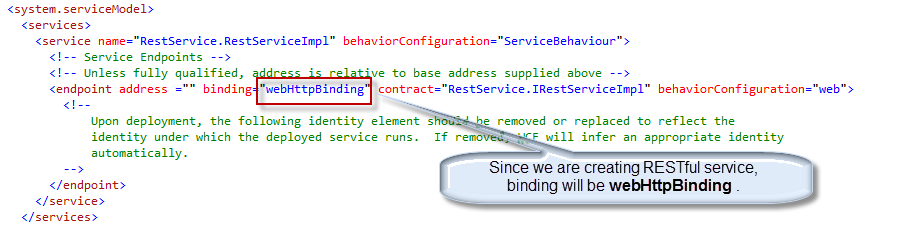
<services> 
This part contains information about the End Point. Below are the code details.
Click to enlarge image
<behaviors>
This part contains details about service and endpoint behavior.
And that’s it. Our Restful WCF service is ready for test purposes.

Service Ready to Test Now

Now I launch the application in the browser to see the result. I launch this service in Internet Explorer and my URL is now http://localhost:35798/RestServiceImpl.svc. Now if I use http://localhost:35798/RestServiceImpl.svc/xml/123 URL, I get the following response on the browser which is an XML format and that was my task to achieve.
Now if I use http://localhost:35798/RestServiceImpl.svc/json/123 URL, I get the following response on the browser which is an XML format and that was my task to achieve.